I get notifications for work emails on my phone, I don't disable them out of hours as I get relatively few during the weekend, and there are some things I like to keep on top of if they pop up, i.e. I'd rather be bothered for 10 minutes and push a quick fix, than let something burn all weekend and have a bigger problem Monday.
Some of the emails I get are relatively important to deal with, just not on the weekend. An example is Sentry's Weekly Report, it's not urgent but I don't want to skip over reading it in case it shows some trending issues we need to address in the near future.
But unfortunately, Sentry doesn't currently allow you to configure when you receive this email. For me it arrives at 3am on Sunday. It doesn't wake me up, but it is one of the first things I see when I do wake up. I can snooze it then and there, but I'd rather not see it until my next workday.
Unfortunately there isn't currently a built in feature to automatically snooze some emails in Gmail, but we can implement such a feature with a label, a filter and a small Apps Script.
Step 1: Create a label
In Gmail: Settings > See all settings > Labels > Create new label.
Call it Out of Hours Snooze (can also call it something else, just update the LABEL_NAME in the script below).
Step 2: Create a filter
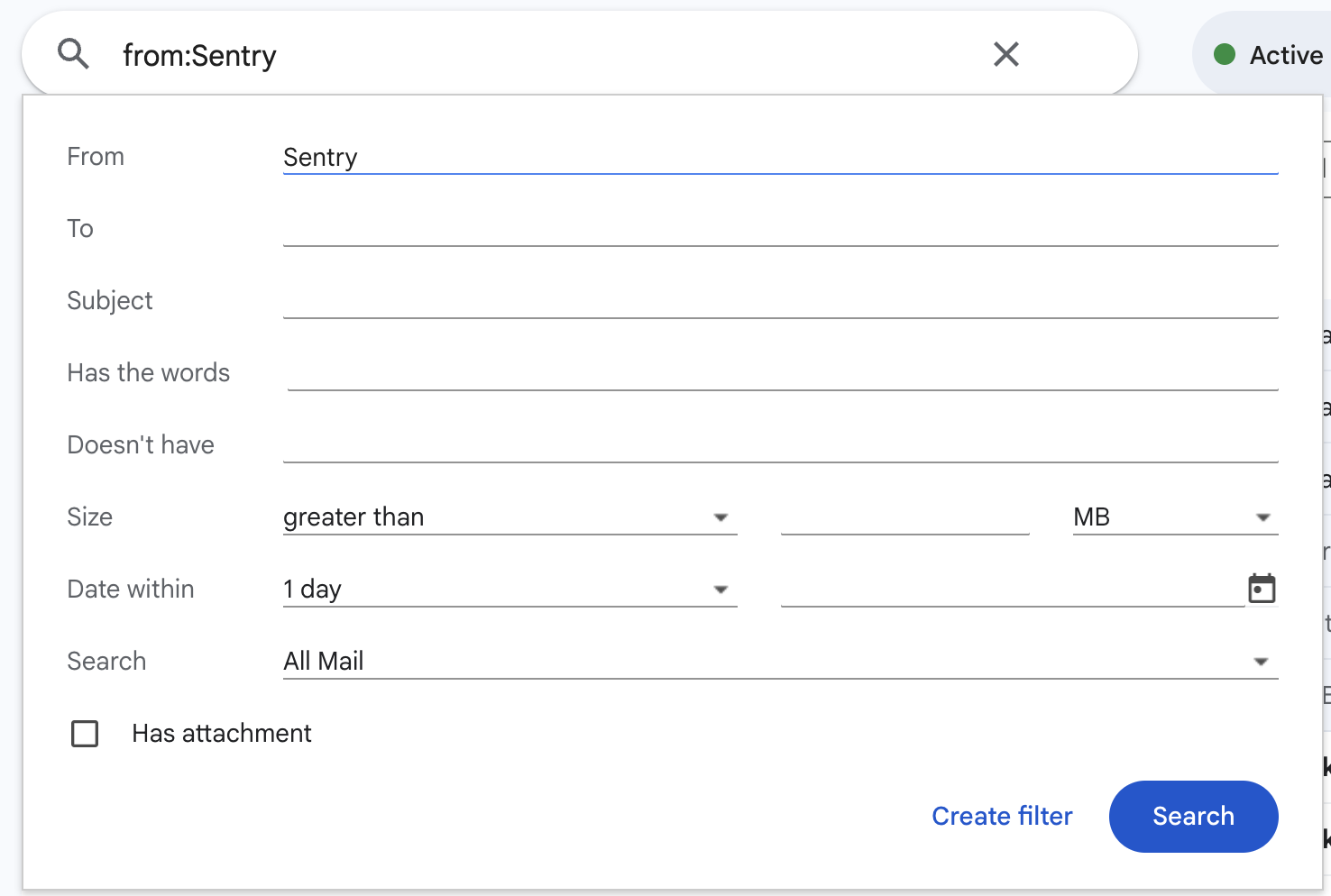
Now we need to decide what emails get snoozed, we do that by creating a filter that automatically adds the new label, and set the filtered emails to skip the inbox.
In Gmail: either via the Create filter link in the search box or in Settings > Filters and Blocked Addresses > Create a new filter.
Match either all incoming mail or specific senders/subjects/etc. On the next screen tick:
- Skip the Inbox (Archive it)
- Apply the label:
Out of Hours Snooze
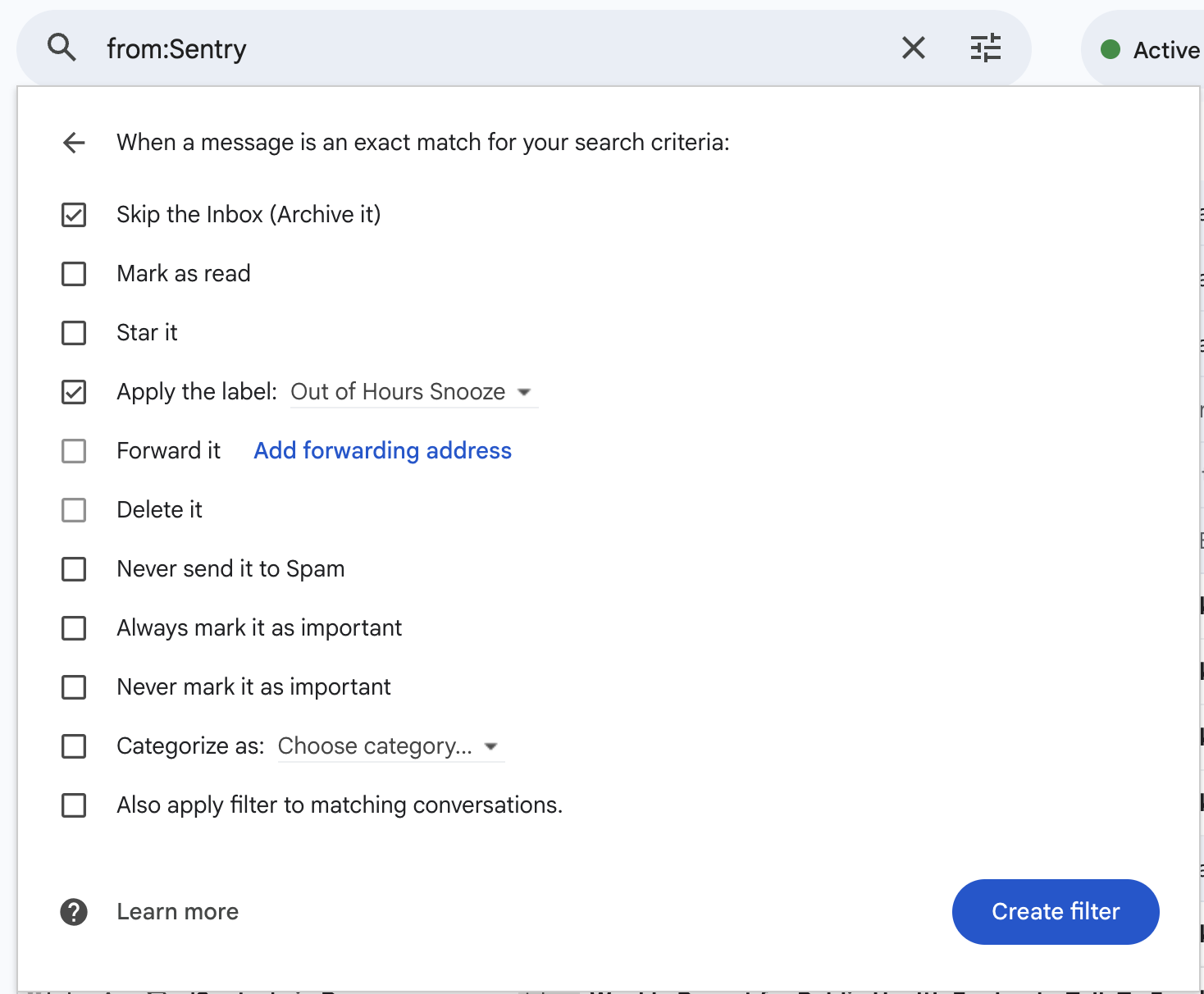
Now all chosen mail will be hidden from the inbox by default, make sure to implement step 3 or you'll likely never see them again.
Step 3: Create a Google Apps Script to restore them
At script.google.com, click "+ New project" button, and in the new code editor replace the entire contents of the file (Code.gs) with:
// https://4lun.net/004--automatically-snooze-specific-emails-in-gmail-outside-of-work-hours

const LABEL_NAME = "Out of Hours Snooze";

const [SUN, MON, TUE, WED, THU, FRI, SAT] = [...Array(7).keys()];

// Configure your working window here. Restores happen only inside it.
const WORK_DAYS = [MON, TUE, WED, THU, FRI];
const WORK_START_HOUR = 9;
const WORK_END_HOUR = 17;

function setup() {
    const installed = ScriptApp.getProjectTriggers().some(
        (t) => t.getHandlerFunction() === "restoreSnoozedEmails",
    );
    if (installed) return;

    ScriptApp.newTrigger("restoreSnoozedEmails")
        .timeBased()
        .everyMinutes(10)
        .create();
}

function restoreSnoozedEmails() {
    const now = new Date();
    const day = now.getDay();
    const hour = now.getHours();

    const inWorkHours =
        WORK_DAYS.includes(day) &&
        hour >= WORK_START_HOUR &&
        hour < WORK_END_HOUR;

    if (!inWorkHours) {
        console.log("Outside work hours, skipping restore.");
        return;
    }

    const label = GmailApp.getUserLabelByName(LABEL_NAME);
    if (!label) {
        throw new Error(`Label "${LABEL_NAME}" not found.`);
    }

    const threads = label.getThreads();
    if (threads.length === 0) {
        console.log("Nothing to restore.");
        return;
    }

    console.log(`Restoring ${threads.length} thread(s).`);

    for (let i = 0; i < threads.length; i += 100) {
        const batch = threads.slice(i, i + 100);
        GmailApp.moveThreadsToInbox(batch);
        label.removeFromThreads(batch);
    }
}
(Near the top you can change a few of the values to meet your needs, e.g. if you work outside the usual 9-5, Mon-Fri. The hours are interpreted in your Apps Script project's timezone, which defaults to your Google account's.)
Click on "Untitled project" in header to rename it, pick something memorable (e.g. "Out of Hours Snooze"), and then click the Save icon ("Save project to Drive" option) in the toolbar. From here we need to trigger the "setup" function once to install the time trigger: ensure "setup" is selected in the dropdown and click "Run".
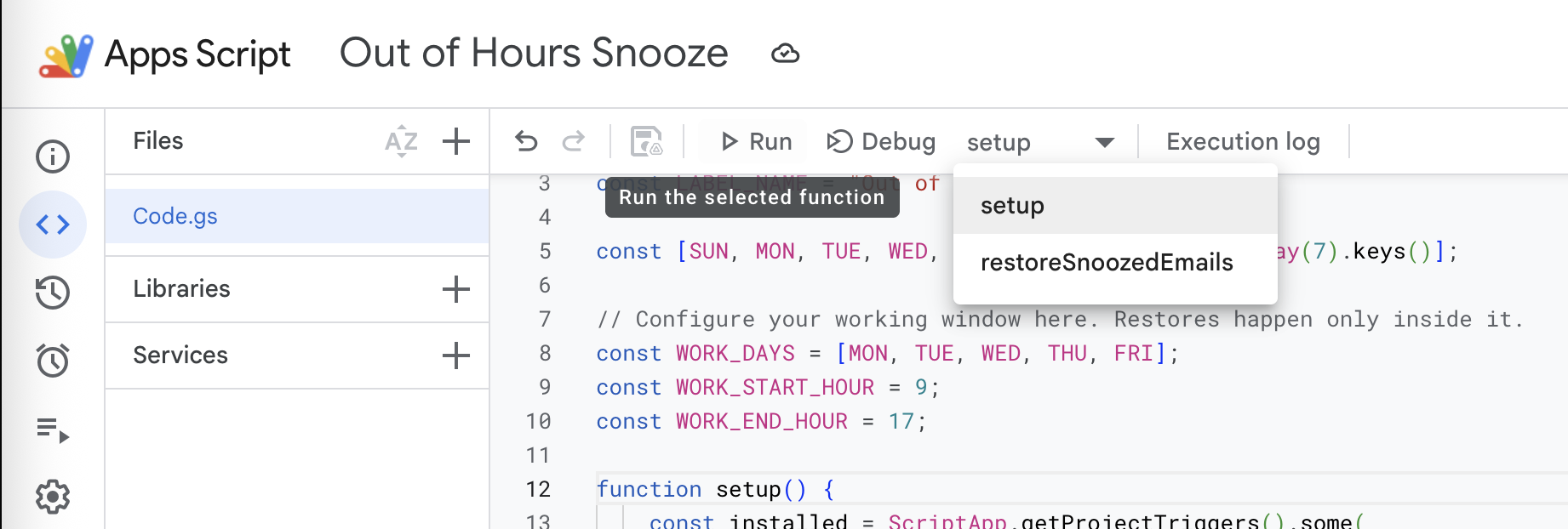
You'll be asked to review and accept permissions. You'll need to tick all of them. Note that the only code that runs is the small script above so take time to review and understand it if unsure.
And done - any emails with the "Out of Hours Snooze" label will automatically be restored to the inbox (and have the label removed).
Note: the Apps Script free quota includes 90 minutes/day of total trigger runtime (6 hours for Workspace). Each run here is a couple of seconds at most, so 144 runs/day (a 10 minute interval is set in the script) should fit comfortably inside that.
Credit
Original idea from Michel Vermeulen's post on Medium. The link to their original script no longer works, so I wrote this one from scratch.